Weblogic : Monitor Weblogic through command line

Posted by Sagar Patil

Set the java environment. There is a script for setting the CLASSPATH and PATH so that this tool can work.

> source setWLSEnv.sh
CLASSPATH=/dsk2/local/bea81/jdk141_02/lib/tools.jar:/dsk2/local/bea81/weblogic81/server/lib/weblogic_sp.jar:
/dsk2/local/bea81/weblogic81/server/lib/weblogic.jar:/dsk2/local/bea81/weblogic81/server/lib/ojdbc14.jar:
:/dsk1/AdvIngres/ing26/ingres/lib/edbc.jar:/dsk1/AdvIngres/ing26/ingres/lib/edbc.jar

PATH=/dsk2/local/bea81/weblogic81/server/bin:/dsk2/local/bea81/jdk141_02/jre/bin:/dsk2/local/bea81/jdk141_02/bin:
/dsk1/AdvIngres/ing26/ingres/bin:/dsk1/AdvIngres/ing26/ingres/utility:/dsk1/AdvIngres/ing26/ingres/files:
/dsk1/AdvIngres/ing26/ingres/lib:/dsk1/AdvIngres/ing26/ingres/SUNWspro/bin:/sbin:/usr/sbin:/bin:/usr/bin:
/usr/ucb:/etc:/usr/etc:/opt/fw/bin:/var/adm/psmfc/bin:/usr/openwin/bin:/usr/local/bin:/usr/psmfc/bin:
/usr/ccs/bin:/usr/lib/nis:/opt/gnu/bin:/usr/local/bin

Your environment has been set.

Success

> java weblogic.Admin

weblogic.Admin is a command-line utility for managing WebLogic Server.

Try: weblogic.Admin help LIFECYCLE   Starting, stopping, discovering servers
weblogic.Admin help INFO        Retrieving info about WebLogic Server
weblogic.Admin help JDBC        Working with JDBC connection pools
weblogic.Admin help MBEAN       Working with WebLogic Server MBeans
weblogic.Admin help CLUSTER     Working with clusters
weblogic.Admin help ALL         Help for all commands

Usage: java [<SSL trust options>] weblogic.Admin
[ [-url | -adminurl] [<protocol>://]<listen-address>:<port>]
-username <username> -password <password>
<COMMAND> <ARGUMENTS>

Sample commands

get state
> java weblogic.Admin -username user -password pass GETSTATE myserver
Current state of “myserver” : RUNNING

get server config

> java weblogic.Admin -username user -password pass GET -pretty -type Server

get server stats
> java weblogic.Admin -username user -password pass GET -pretty -type ServerRuntime

get queue stats

> java weblogic.Admin -username user -password pass GET -pretty -type ExecuteQueueRuntime

get queue stats for just the default execute queue (the one that does application work)

This shows that there are 15 idle threads that can be used by the application and there are no pending requests. Also, this queue has serviced 415,607 requests.

get JVM stats

> java weblogic.Admin -username user -password pass GET -pretty -type JVMRuntime

get JDBC stats

We have connection pools configured, but are not using them, so this is not a useful source of information.

> java weblogic.Admin -username user -password pass GET -pretty -type JDBCConnectionPoolRuntime

Creating Users /Groups at Websphere

Posted by Sagar Patil

We have to create WAS groups before creating & assigning users.

Click on Manage groups and add a new groups , here “WAS Monitor”


Click on “Save “


Click on “Create” at  right hand pane & you will see a FORM like one below

Click on “Group Membership” and select WAS Operator role we just created.


Now refer to following post for stopping  and starting  websphere services
http://www.oracledbasupport.co.uk/websphere-security-switch-off-usernamepassword-prompt/#comment-2905

Script to Auto Start Primary/Standby Database under Linux

Posted by Sagar Patil

The following represents the Oracle recommended method for automating database startup and shutdown of Oracle 10g instances.

Once the instance is created, edit the “/etc/oratab” file setting the restart flag for each instance to ‘Y’.
dev:/u01/app/oracle/product/10.2.0:N
Change N to Y
dev:/u01/app/oracle/product/10.2.0:Y

Next, create a file called “/etc/init.d/dbora” as the root user, containing the following.

#!/bin/sh
# chkconfig: 345 99 10
# description: Oracle auto start-stop script.
#
# Set ORA_HOME to be equivalent to the $ORACLE_HOME
# from which you wish to execute dbstart and dbshut;
#
# Set ORA_OWNER to the user id of the owner of the
# Oracle database in ORA_HOME.

ORA_HOME=/u01/app/oracle/product/10.2.0/
ORA_OWNER=oracle

if [ ! -f $ORA_HOME/bin/dbstart ]
then
echo “Oracle startup: cannot start”
exit
fi

case “$1” in
‘start’)
# Start the Oracle databases:
# The following command assumes that the oracle login
# will not prompt the user for any values
su – $ORA_OWNER -c “$ORA_HOME/bin/dbstart $ORA_HOME”
;;
‘stop’)
# Stop the Oracle databases:
# The following command assumes that the oracle login
# will not prompt the user for any values
su – $ORA_OWNER -c “$ORA_HOME/bin/dbshut $ORA_HOME”
;;
esac

set the chmod command to set the privileges to 750
chmod 750 /etc/init.d/dbora

Associate the dbora service with the appropriate run levels and set it to auto-start using the following command.
chkconfig –add dbora

The default TNS listener (LISTENER) will be started by dbshut/dbstart scripts.

If you are using customized listener name like LISTENER_TEST, LISTENER_PRE then please edit dbshut and dbstart lines as below

— At DBSHUT
$ORACLE_HOME_LISTNER/bin/lsnrctl LISTENER stop    “Change to”
$ORACLE_HOME_LISTNER/bin/lsnrctl LISTENER_TEST stop

–AT DBSTART
$ORACLE_HOME_LISTNER/bin/lsnrctl LISTENER start    “Change to”
$ORACLE_HOME_LISTNER/bin/lsnrctl LISTENER_TEST start

The relevant instances should now startup/shutdown automatically at system startup/shutdown

Websphere : How to Create Self Signed SSL Certificate for HTTPServer

Posted by Sagar Patil

What is SSL ?

  • SSL (Secure Sockets Layer) is an encryption system used on servers to ensure privacy when transmitting data across internet.
  • Server needs a public-private key pair and a certificate. The server uses its private key to sign messages to clients.
  • To send its public key to clients, the server needs a certificate issued by a certification authority (CA). A certification authority (CA) is a trusted third party that issues certificates.

IBM’s way of SSL implementation :  IBM provides GSKit (Global Security Kit)
* GSKit provides SSL (Secure Socket Layer) functions for IBM Products
* GSKit provides IKeyman

IKeyman

  • IKeyman (IBM Key Management Utility)
  • Java-based application to manage keys and key databases
  • Using IKeyman, you can  Create a new key database , Add root CA to your database,  Request and receive a certificate from a CA
  • Set default keys
  • Change password

How to Create Self Signed SSL Certificate?

Create a SSL directory under $HTTP_HOME/conf to store all SSL keys. Make sure this directory is secured.

[was61@Server1 conf]$ pwd
/opt/IBM/HTTPServer/conf
[was61@Server1 conf]$ mkdir ssl

Start $HTTPSever_home/bin/ikeyman tool

Apache Tomcat and many other Java applications expect to retrieve SSL/TLS certificates from a Java Key Store (JKS). Select JKS else PKCS2 on your preference.  I have gone for PKCS12  here,  http://en.wikipedia.org/wiki/PKCS

Navigate “Location” tab to SSL directory created earlier


It will prompt you for a password , enter value. You should have a screen as below.

Select “Personal Certificate Requests“ from drop-down options

Click on “new” to start a new self-signed certificate request

Fill up fields and click on OK

Ikeyman should list “Self-Signed” certificate as below

Double Click on “self-signed” Tab and you will be able to see certificate details

Now certificate is in place so let’s Amend SSL certificate configuration at httpd.conf

Edit $HTTPServer_HOME/httpd.conf and add following details

  • Listen Server1:443
  • Towards end of http.conf file add virtual host  details

LoadModule ibm_ssl_module modules/mod_ibm_ssl.so
<VirtualHost  Server1:443>
SSLEnable
SSLClientAuth None
SSLServerCert self-signed    — Make sure this is same field as “Key-Label” at create SSL request
KeyFile “/opt/IBM/HTTPServer/conf/ssl/key.p12”
# SSLStashfile “/opt/IBM/HTTPServer/conf/ssl/key.sth”  — This file is required for “CMS key Database format”  but not for JKS/PKCS12
DocumentRoot “/opt/IBM/HTTPServer/htdocs/en_US”
LogLevel warn
LogFormat   “%h %l %u %t \”%r\” %>s %b %{HTTPS}e %{SSL_CIPHER}e %{SSL_CLIENT_DN}e” SSL
CustomLog “|/opt/IBM/HTTPServer/bin/rotatelogs /opt/IBM/HTTPServer/logs/ssl_access%d%m%Y.log 86400” SSL
ErrorLog  “|/opt/IBM/HTTPServer/bin/rotatelogs /opt/IBM/HTTPServer/logs/ssl_error%d%m%Y.log 86400”
</VirtualHost>

  • Finally re-start HTTP server & monitor log  at /opt/IBM/HTTPServer/logs/ ssl_error.log

Try machine SSL URL https://Server1, It should send you a valid response.

Clone a WebShere installation on another server

Posted by Sagar Patil

Method 1:

1) Install exact websphere version including fixpack on a new machine
Note you have to make sure to use same install path for example

2) create dmgr and nodeprofile on a NEW machine

3) Stop the dmgr, nodeagent and all application server on OLD machine

4) Tar/zip up complete dmgr profile directory and node profile from OLD machine and untar/unzip on a NEW machine

Now change hostname entries in the websphere configuration and Use following link for changing hostname
WebSphere Application Server V6.0 best practices for configuration changes
http://www-01.ibm.com/support/docview.wss?uid=swg27007419&aid=1

5) Once new DMGR is up , manually sync node with dmgr using syncnode command
$NODE_HOME/bin$syncnode newdmgrhostname dmgrsoapport -username user -password password

6)  once sync went fine start the nodeagent and make sure sync status shows correctly on dmgr console

7)  Now start all application server from dmgrconsole


Method 2

1) Install exact websphere version including fixpack on a new machine
Note you have to make sure to use same install path

2) Don’t create any profiles

3) Tar/zip up complete dmgr profile directory and node profile from OLD machine and untar/unzip on a NEW machine

4) Use rename node Command to rename Node

$DMGR_HME/bin$renameNode.sh localhost 8879 newnode

Note : You need to have deployment manager working to use renamenode command.


Websphere : Jython stop & start server scripts

Posted by Sagar Patil

Stop Script:

Let’s check if there are any java (server) process running ?

[was61@ scripts]$ ps -ef | grep java |  awk ‘{print  $2 ” ”  $8}’
18343 /opt/IBM/WebSphere/AppServer/java/bin/java
18521 /opt/IBM/WebSphere/AppServer/java/bin/java
18639 /opt/IBM/WebSphere/AppServer/java/bin/java
18819 /opt/IBM/WebSphere/AppServer/java/bin/java

Copy this script at your node and use it as “wsadmin.sh -f stopCell.py” (No arguments)

#——————————————————————————-
#  Name: stopCell.py
#  Role: Gracefully terminate all active server processes in the cell
# Usage: wsadmin -f stopCell.py
#    or: ./wsadmin.sh -f stopCell.py
#——————————————————————————-
#  Name: showAsDict.py
#  From: WebSphere Application Server Administration using Jython
#    By: Robert A. (Bob) Gibson [rag], Arthur Kevin McGrath, Noel J. Bergman
#  ISBN: 0-137-00952-6
#——————————————————————————-
def showAsDict( configID ) :
‘Return a dictionary of the AdminConfig.show( configID ) result.’
result = {};
try :
import sys;           # Get access to WSAS objects
#—————————————————————–
# The result of the AdminConfig.show() should be a string
# containing many lines.  Each line of which starts and ends
# with brackets.  The “name” portion should be separated from the
# associated value by a space.
#—————————————————————–
for item in AdminConfig.show( configID ).splitlines() :
if ( item[ 0 ] == ‘[‘ ) and ( item[ -1 ] == ‘]’ ) :
( key, value ) = item[ 1:-1 ].split( ‘ ‘, 1 );
if ( value[ 0 ] == ‘”‘ ) and ( value[ -1 ] == ‘”‘ ) :
value = value[ 1:-1 ];
result[ key ] = value;
except NameError, e :
print ‘Name not found: ‘ + str( e );
except :
( kind, value ) = sys.exc_info()[ :2 ];
print ‘Exception  type: ‘ + str( kind );
print ‘Exception value: ‘ + str( value );
return result;

#———————————————————————
# For each type of server
#———————————————————————
for Type in [ ‘APPLICATION_SERVER’, ‘NODE_AGENT’, ‘DEPLOYMENT_MANAGER’ ] :
#——————————————————————-
# For each configured server
#——————————————————————-
for server in AdminConfig.list( ‘Server’ ).splitlines() :
#—————————————————————–
# If this server is of the current type
#—————————————————————–
sDict = showAsDict( server );
if sDict[ ‘serverType’ ] == Type :
bean = AdminConfig.getObjectName( server );
#—————————————————————
# Is this server active
#—————————————————————
if bean :
#————————————————————-
# stop it (asynchronously)
#————————————————————-
print ‘Stoppping: ‘ + sDict[ ‘name’ ];
AdminControl.invoke( bean, ‘stop’ );

Usage :

[was61@ scripts]$  /opt/IBM/WebSphere/AppServer/bin/wsadmin.sh -f stopcell.py
WASX7209I: Connected to process “dmgr” on node server1_Manager using SOAP connector;  The type of process is: DeploymentManager
Stoppping: server_member1
Stoppping: server_member2
Stoppping: nodeagent
Stoppping: dmgr

Start Script:

Let’s check if there are any java (server) process running ?

[was61@scripts]$ ps -ef | grep java |  awk ‘{print  $2 ” ”  $8}’
19420 grep

#———————————————————————
# Name: startCell()
# Role: Attempt to start all of the Application Servers in the
#       specified WebSphere Application Server cell.
#———————————————————————
”’
Program: %(cmdName)s.py\n
Role: Attempt to start all of the Application Servers in the
specified WebSphere Application Server cell.\n
Usage: python %(cmdName)s.py <WSAS_HOME>\n
Example: python %(cmdName)s.py C:\\IBM\\WebSphere\\AppServer
”’
import os, sys, re;
__Debug__  = True;
__dashes__ = ‘-‘ * 79;

#———————————————————————
# Name: dirCheck()
# Role: Verify that the specified directory exists, and is a directory
#———————————————————————
def dirCheck( path ) :
return os.path.exists( path ) and os.path.isdir( path );

#———————————————————————
# Name: log()
# Role: If debugging is enabled, log the specified message
#———————————————————————
def log( msg ) :
if __Debug__ :
print msg;

#———————————————————————
# Name: getProfiles()
# Role: Determine the names of the existing profiles
#———————————————————————
def getProfiles( binPath, tempFile ) :
log( ‘getProfiles(): Enter’ );
try :
if os.name == ‘nt’ :
cmd =  ‘manageprofiles’;
else :
cmd =  ‘./manageprofiles.sh’;
exe = os.path.join( binPath, cmd );
log( ‘Calling: %s -listProfiles’ % exe );
rc  = os.system( exe + ‘ -listProfiles >’ + tempFile );
fh  = open( tempFile );
result = fh.read();
log( ‘Result:\n%s\n%s%s’ % ( __dashes__, result, __dashes__ ) );
result = result[ 1:-2 ].split( ‘, ‘ );
fh.close();
except :
Type, value = sys.exc_info()[ :2 ];
log( ‘Exception  Type: ‘ + `Type` );
log( ‘          value: ‘ + `value` );
result = [];
log( ‘getProfiles(): Exit  result = ‘ + `result` );
return result;

#———————————————————————
# Name: getStoppedServers()
# Role: Determine the Server name and type for the specified profiles
# Note: We’re only interested in “stopped” servers, we ignore started
#       ones.
#     – The 3 Types of Servers are:
#       Deployment Manager
#       Node Agent
#       Application Server
#———————————————————————
def getStoppedServers( binPath, tempFile, profileNames ) :
log( ‘getStoppedServers(): Enter’ );
result = {};
pat = re.compile( ‘^ADMU0509I: The (\w+ \w+) “(\w+)”‘ )
for pName in profileNames :
try :
if os.name == ‘nt’ :
cmd =  ‘serverStatus’;
else :
cmd =  ‘./serverStatus.sh’;
exe = os.path.join( binPath, cmd );
log( ‘Calling: %s -all -profileName %s’ % ( exe, pName ) );
rc  = os.system( ‘%s -all -profileName %s >%s’ % ( exe, pName, tempFile ) );
fh  = open( tempFile );
log( ‘Result:\n%s’ % __dashes__ );
for line in fh.read().splitlines() :
mo = pat.match( line );
if mo :
Type, sName = mo.group( 1 ), mo.group( 2 );
log( ‘Stopped: %s -profileName %s’ % ( sName, pName ) );
if result.has_key( Type ) :
result[ Type ].append( ( pName, sName ) );
else :
result[ Type ] = [ ( pName, sName ) ];
log( __dashes__ );
fh.close();
except :
value = str( sys.exc_info()[ 1 ] );
print ‘Error processing profileName %s: %s’ % ( pName, value );
log( ‘getStoppedServers(): Exit  result =’ + `result` );
return result;

#———————————————————————
# Name: startCell()
# Role: Start the application servers in the specified cell.
#———————————————————————
def startCell() :
log( ‘startCell(): Enter’ );

#——————————————————————-
# How many user specified command line options exist?
#——————————————————————-
argc = len( sys.argv );
if argc != 2 :
Usage();
else :
try :
#—————————————————————
# pgm = fully qualified path to script being executed
#—————————————————————
pgm  = sys.argv[ 0 ];
if not pgm.endswith( ‘.py’ ) :
raise ValueError( ‘Unrecognized script type: “%s”‘ % pgm );
tempfile = pgm[ :-2 ] + ‘temp’;
#     print ‘tempfile: “%s”‘ % tempfile;

#—————————————————————
# Verify that washome exists, and is a directory
#—————————————————————
WASerror = ‘”%s” does not appear to be a WAS Home directory.’;
washome = sys.argv[ 1 ];
if not dirCheck( washome ) :
print WASerror % washome;
sys.exit();

wasbin  = os.path.join( washome, ‘bin’ );
if not dirCheck( wasbin ) :
print WASerror % wasbin;
sys.exit();

#—————————————————————
# Get a list of the available profileNames
#—————————————————————
profileNames = getProfiles( wasbin, tempfile );

#—————————————————————
# For each Server Type, list the profilName and serverName of
# each stopped server
#—————————————————————
stopped = getStoppedServers( wasbin, tempfile, profileNames );

#—————————————————————
# width = length of longest server name
#—————————————————————
sNames = [];
for Type in stopped :
for n, s in stopped[ Type ] :
sNames.append( s );
width = max( [ len( x ) for x in sNames ] );

#—————————————————————
# Process each Type, in the right order to start the cell
#—————————————————————
for Type in [ ‘Deployment Manager’, ‘Node Agent’, ‘Application Server’ ] :
if stopped.has_key( Type ) :
for pName, sName in stopped[ Type ] :
startServer( wasbin, pName, sName, tempfile, -width );

#—————————————————————
# Remove the temporary file
#—————————————————————
try :
os.unlink( tempfile );
except :
pass;
except :
Type, value = sys.exc_info()[ :2 ];
Type, value = str( Type ), str( value );
print ‘Exception type: %s\n         value: %s’ % ( Type, value );
log( ‘startCell(): Exit’ );

#———————————————————————
# Name: startServer()
# Role: Execute the WebSphere Application Server “startServer” command
#———————————————————————
def startServer( binPath, profile, server, tempFile, width = None ) :
log( ‘startServer(): Enter’ );
try :
if os.name == ‘nt’ :
cmd =  ‘startServer’;
else :
cmd =  ‘./startServer.sh’;
log( ‘Calling: %s %s -profileName %s’ % ( cmd, server, profile ) );
exe = os.path.join( binPath, cmd );
if width :
print ‘%s %*s -profileName %s’ % ( cmd, width, server, profile ),
else :
print ‘%s %s -profileName %s’ % ( cmd, server, profile ),
cmd = ‘%s %s -profileName %s >%s’ % ( exe, server, profile, tempFile );
rc  = os.system( cmd );
fh  = open( tempFile )
tail = fh.read().splitlines()[ -1 ];
fh.close();
if tail.startswith( ‘ADMU3000I:’ ) :
log( ‘  Started successfully.’ );
result = 0;
if not __Debug__ :
print;
else :
log( ‘  Start failed:’, tail );
print ‘  Error – tail = “%s”‘ % tail;
result = 1;
except :
value = str( sys.exc_info()[ 2 ] );
print ‘  Error – ‘, value;
result = -1;
log( ‘startServer(): Exit’ );
return result;

#———————————————————————
# Name: Usage()
# Role: Descript script function
#———————————————————————
def Usage( cmdName = ‘startCell’ ) :
print __doc__ % locals();
sys.exit( -1 );

#———————————————————————
# main entry point – verify that script was executed, not imported
#———————————————————————
if __name__ == ‘__main__’ :
if os.name in [ ‘nt’, ‘posix’ ] :
startCell();
else :
print ‘Unsupported Operating System type: %s\n’ % os.name;
Usage();
else :
Usage( __name__ );

Usage (Ignore)

[was61@scripts]$ /opt/IBM/WebSphere/AppServer/bin/wsadmin.sh -f startcell.py
WASX7023E: Error creating “SOAP” connection to host “localhost”; exception information: com.ibm.websphere.management.exception.ConnectorNotAvailableException: com.ibm.websphere.management.exception.ConnectorNotAvailableException: ADMC0016E: The system cannot create a SOAP connector to connect to host localhost at port 8879.
WASX7213I: This scripting client is not connected to a server process; please refer to the log file /opt/IBM/WebSphere/AppServer/profiles/Profile01/dmgr/logs/wsadmin.traceout for additional information.
WASX8011W: AdminTask object is not available.
Program: main.py
Role: Attempt to start all of the Application Servers in the
specified WebSphere Application Server cell.
Usage: python main.py <WSAS_HOME>
Example: python main.py C:\IBM\WebSphere\AppServer

(Please note you will need python installed on your box to run this script)

[was61@scripts]$ python startcell.py /opt/IBM/WebSphere/AppServer

startServer dmgr -profileName dmgr

I have tested it and it is only bringing up DMGR,Will need some tweaking

[was61@scripts]$ ps -ef | grep java |  awk ‘{print  $2 ” ”  $8}’
19716 /opt/IBM/WebSphere/AppServer/java/bin/java

Jython Script : Get websphere Server Details

Posted by Sagar Patil

This jython script will produce output  as below :

$/opt/IBM/WebSphere/AppServer/bin/wsadmin.sh -lang jython -profile serverStatus.py -c “serverStatus()”

WASX7209I: Connected to process “dmgr” on node server1_Manager using SOAP connector;  The type of process is: DeploymentManager

Server               |        Cell       |         Node         | Status
——————–+——————-+———————-+——–
dmgr                | Server1_Cell | Server1_Manager | running
server_member1         | Server1_Cell | Server1_Node01  | running
server_member2 | Server1_Cell | Server1_Node01  | running
nodeagent           | Server1_Cell | Server1_Node01  | running

import re;

#———————————————————————
# Name: serverStatus()
# Role: Display the status of the known servers
#———————————————————————
def serverStatus() :
#——————————————————————-
# RegExp to extract the server, cell, and node name for each server
#——————————————————————-
pat = re.compile( r’^(\w+)\(cells/(\w+)/nodes/(\w+)/servers\/\1.*\)$’ );

#——————————————————————-
# Retrieve the list of known servers
# While building the list, compute the max length of each name
#——————————————————————-
info   = [];
maxLen = [ 0 ] * 3;

#——————————————————————-
# For each server of the known servers
#——————————————————————-
servers = AdminConfig.list( ‘Server’ ).splitlines();
for server in servers :
#—————————————————————–
# An Object Name will exist if the specified server is running
#—————————————————————–
oName = AdminConfig.getObjectName( server );
if oName != ” :
status = ‘running’;
else :
status = ‘stopped’;
#—————————————————————–
# Extract the server, cell, and node name
# (match Object)
#—————————————————————–
mObj = pat.match( server );
if mObj :
#—————————————————————
# Save the data, and see if the length of each field name is the
# longest we have yet seen (i.e., maxLen[ i ])
#—————————————————————
( sName, cName, nName ) = mObj.groups();
info.append( ( sName, cName, nName, status ) );
for i in range( 3 ) :
L = len( mObj.group( i + 1 ) );
if L > maxLen[ i ] : maxLen[ i ] = L;

#——————————————————————-
# Display the information
#——————————————————————-
( L0, L1, L2 ) = maxLen;
( sName, cName, nName, status ) = ‘Server,Cell,Node,Status’.split( ‘,’ );
sName = sName.center( L0 );
cName = cName.center( L1 );
nName = nName.center( L2 );
print ‘%(sName)s | %(cName)s | %(nName)s | %(status)s’ % locals();
print ( ‘-‘ * L0 ) + ‘-+-‘ + ( ‘-‘ * L1 ) + ‘-+-‘ + ( ‘-‘ * L2 ) + ‘-+——–‘;
for scn in info :
( sName, cName, nName, status ) = scn;
print ‘%-*s | %-*s | %-*s | %s’ % ( L0, sName, L1, cName, L2, nName, status );

JACL Script : Get server status & OS details before deployment

Posted by Sagar Patil

This script is designed to get complete server status details and OS details just before deployemnt. Its designed to help in debugging and simulating the same environment.
Note:No arguments required for this script to run

I have added JACL script output first, scroll down to see the actual script.

Script for download

[was61@Machine1 ~]$ /opt/IBM/WebSphere/AppServer/bin/wsadmin.sh -user sagar -password 1234 -f getdetails.jacl

WASX7209I: Connected to process “dmgr” on node Machine1_Manager using SOAP connector;  The type of process is : DeploymentManager
****************************************************************
—              GET ALL DEBUG DETAILS                        —
****************************************************************
server details on Jul. 14, 2010 03:24:10 PM
Starting getDetails script …
———————————————————————-
Number of running servers on node Machine1_Manager: 1
Server dmgr processtype: DeploymentManager
Server dmgr state STARTED
Server dmgr JVM details WebSphere:name=JVM,process=dmgr,platform=proxy,node=Machine1_Manager,j2eeType=JVM,J2E                                            EServer=dmgr,version=6.1.0.21,type=JVM,mbeanIdentifier=JVM,cell=Machine1_Cell,spec=1.0
———————————————————————————
Websphere Application Server dmgr Java Env. Details:
———————————————————————————
Java Specification Name: Java Platform API Specification
Java Specification vendor Name: Sun Microsystems Inc.
Java Specification Version: 1.5
java.util.logging.manager : com.ibm.ws.bootstrap.WsLogManager
java.util.logging.configureByServer : true
java.util.prefs.PreferencesFactory : com.ibm.ws.util.prefs.HashPreferencesFactory
java.vendor : IBM Corporation
java.vendor.url : http://www.ibm.com/
java.version : 1.5.0
Java virtual machine info: J2RE 1.5.0 IBM J9 2.3 Linux amd64-64 j9vmxa6423ifx-20080811 (JIT enabled)
J9VM – 20080809_21892_LHdSMr
JIT  – 20080620_1845_r8
GC   – 200806_19
—————————————————————————
dmgr (DeploymentManager) has pid 2231; state: STARTED; on Linux
Number of applications running on dmgr: 3
ManagementEJB
—————————————————————-

filetransfer
—————————————————————-

isclite
—————————————————————-

Number of running servers on node Machine1_Node01: 3
Server server_member1 processtype: ManagedProcess
Server server_member1 state STARTED
Server server_member1 JVM details WebSphere:name=JVM,process=server_member1,platform=proxy,node=Server1                             ,j2eeType=JVM,J2EEServer=server_member1,version=6.1.0.21,type=JVM,mbeanIdentifier=JVM,cell=Server1_Cell,spec=1.0
———————————————————————————
Websphere Application Server server_member1 Java Env. Details:
———————————————————————————
Java Specification Name: Java Platform API Specification
Java Specification vendor Name: Sun Microsystems Inc.
Java Specification Version: 1.5
java.util.logging.manager : com.ibm.ws.bootstrap.WsLogManager
java.util.logging.configureByServer : true
java.util.prefs.PreferencesFactory : java.util.prefs.FileSystemPreferencesFactory
java.vendor : IBM Corporation
java.vendor.url : http://www.ibm.com/
java.version : 1.5.0
Java virtual machine info: J2RE 1.5.0 IBM J9 2.3 Linux amd64-64 j9vmxa6423ifx-20080811 (JIT enabled)
J9VM – 20080809_21892_LHdSMr
JIT  – 20080620_1845_r8
GC   – 200806_19
—————————————————————————
server_member1 (ManagedProcess) has pid 2507; state: STARTED; on Linux
Number of applications running on server_member1: 1
perfServletApp
—————————————————————-

Server server_member2 processtype: ManagedProcess
Server server_member2 state STARTED
Server server_member2 JVM details WebSphere:name=JVM,process=server_member2,platform=proxy,node=server1                                        _Node01,j2eeType=JVM,J2EEServer=server_member2,version=6.1.0.21,type=JVM,mbeanIdentifier=JVM,cell=server1_Cell,spec=1.0
———————————————————————————
Websphere Application Server server_member2 Java Env. Details:
———————————————————————————
Java Specification Name: Java Platform API Specification
Java Specification vendor Name: Sun Microsystems Inc.
Java Specification Version: 1.5
java.util.logging.manager : com.ibm.ws.bootstrap.WsLogManager
java.util.logging.configureByServer : true
java.util.prefs.PreferencesFactory : java.util.prefs.FileSystemPreferencesFactory
java.vendor : IBM Corporation
java.vendor.url : http://www.ibm.com/
java.version : 1.5.0
Java virtual machine info: J2RE 1.5.0 IBM J9 2.3 Linux amd64-64 j9vmxa6423ifx-20080811 (JIT enabled)
J9VM – 20080809_21892_LHdSMr
JIT  – 20080620_1845_r8
GC   – 200806_19
—————————————————————————
server_member2 (ManagedProcess) has pid 2705; state: STARTED; on Linux
Number of applications running on server_member2: 1
perfServletApp
—————————————————————-

Server nodeagent processtype: NodeAgent
Server nodeagent state STARTED
Server nodeagent JVM details WebSphere:name=JVM,process=nodeagent,platform=proxy,node=Machine1_Node01,j2eeTyp                                            e=JVM,J2EEServer=nodeagent,version=6.1.0.21,type=JVM,mbeanIdentifier=JVM,cell=Machine1_Cell,spec=1.0
———————————————————————————
Websphere Application Server nodeagent Java Env. Details:
———————————————————————————
Java Specification Name: Java Platform API Specification
Java Specification vendor Name: Sun Microsystems Inc.
Java Specification Version: 1.5
java.util.logging.manager : com.ibm.ws.bootstrap.WsLogManager
java.util.logging.configureByServer : true
java.util.prefs.PreferencesFactory : java.util.prefs.FileSystemPreferencesFactory
java.vendor : IBM Corporation
java.vendor.url : http://www.ibm.com/
java.version : 1.5.0
Java virtual machine info: J2RE 1.5.0 IBM J9 2.3 Linux amd64-64 j9vmxa6423ifx-20080811 (JIT enabled)
J9VM – 20080809_21892_LHdSMr
JIT  – 20080620_1845_r8
GC   – 200806_19
—————————————————————————
nodeagent (NodeAgent) has pid 2368; state: STARTED; on Linux
Number of applications running on nodeagent: 0
getdetails: — Done.
—————————————————————————————————

Actual JACL Script is as below

###############################################################################
#                                                                             #
#                                 getdetails.jacl                                #
#                  ———————————                          #
# Purpose:                                                                    #
#        This script is designed to get complete server status/             #
#             details and OS details                       #
#         just before deployemnt. Its designed to help in debugging          #
#            and simulating the same environment.                     #
#     Note:No arguments required for this script to run                       #
#                                                                             #
###############################################################################
#
#—————————————————
# Setting the User Script Location
#————————————————–
set ScriptLocation [java::call java.lang.System getProperty “script.dir”]
if { $ScriptLocation==”” } then {
set ScriptLocation [java::call java.lang.System getProperty “user.dir”]
}
set ScriptLocation “$ScriptLocation/”

puts “****************************************************************”
puts “–        GET ALL DEBUG DETAILS                 –”
puts “****************************************************************”
set datetime [clock format [clock seconds] -format {%b. %d, %Y %I:%M:%S %p}]
puts “server details on $datetime”
puts “Starting getDetails script …”
puts “———————————————————————-”
#—————————————————————-
# lines 4 and 5 find all the cell and process them one at a time
#—————————————————————-
set cells [$AdminConfig list Cell]
#puts “Echo : $cells”

foreach cell $cells {
#———————————————————————–
# lines 10 and 11 find all the nodes belonging to the cell and
# process them at a time
#———————————————————————–
#puts ” $cell”
set nodes [$AdminConfig list Node $cell]
#puts “echo $nodes”
foreach node $nodes {

#————————————————————–
# lines 16-20 find all the running servers belonging to the cell
# and node, and process them one at a time
#————————————————————–
set cname [$AdminConfig showAttribute $cell name]
#puts “cname : $cname”
set nname [$AdminConfig showAttribute $node name]
#puts “nname : $nname”
set servs [$AdminControl queryNames type=Server,cell=$cname,node=$nname,*]
#puts “servs = $servs”
puts “Number of running servers on node $nname: [llength $servs]”
foreach server $servs {
#———————————————————
# lines 25-31 get some attributes from the server to display;
# invoke an operation on the server JVM to display a property.
#———————————————————
set sname [$AdminControl getAttribute $server name]
set ptype [$AdminControl getAttribute $server processType]
puts “Server $sname processtype: $ptype ”
set pid [$AdminControl getAttribute $server pid]
set state [$AdminControl getAttribute $server state]
puts “Server $sname state $state”
set jvm [$AdminControl queryNames type=JVM,cell=$cname,node=$nname,process=$sname,*]
puts “Server $sname JVM details $jvm”
puts “———————————————————————————”
puts “Websphere Application Server $sname Java Env. Details: ”
puts “———————————————————————————”
set javaspecname [$AdminControl invoke $jvm getProperty java.specification.name]
puts ” Java Specification Name: $javaspecname ”
set javaspecvendorname [$AdminControl invoke $jvm getProperty java.specification.vendor]
puts “Java Specification vendor Name: $javaspecvendorname ”
set javaver [$AdminControl invoke $jvm getProperty java.specification.version]
puts “Java Specification Version: $javaver”
set javalogmanager [$AdminControl invoke $jvm getProperty java.util.logging.manager]
puts “java.util.logging.manager : $javalogmanager”
set javalogconfig [$AdminControl invoke $jvm getProperty java.util.logging.configureByServer]
puts ” java.util.logging.configureByServer : $javalogconfig”
set javautilpre [$AdminControl invoke $jvm getProperty java.util.prefs.PreferencesFactory]
puts “java.util.prefs.PreferencesFactory : $javautilpre”
set javavendor [$AdminControl invoke $jvm getProperty java.vendor]
puts “java.vendor : $javavendor”
set javavendorurl [$AdminControl invoke $jvm getProperty java.vendor.url]
puts “java.vendor.url : $javavendorurl ”
set javaversion [$AdminControl invoke $jvm getProperty java.version]
puts “java.version : $javaversion ”
set javavminfo [$AdminControl invoke $jvm getProperty java.vm.info]
puts “Java virtual machine info: $javavminfo”
set osname [$AdminControl invoke $jvm getProperty os.name]
#puts “Operating System found for $sname: $osname”
puts “—————————————————————————”
puts ” $sname ($ptype) has pid $pid; state: $state; on $osname”
#———————————————————
# line 37-42 find the applications running on this server and
# display the application name.
#———————————————————
set apps [$AdminControl queryNames type=Application,cell=$cname,node=$nname,process=$sname,*]
#puts “apps= $apps ”
puts ” Number of applications running on $sname: [llength $apps]”
foreach app $apps {
set aname [$AdminControl getAttribute $app name]
puts ” $aname”
puts “—————————————————————-”
puts “”
}
}
}
}
puts “getdetails: — Done.”
puts “—————————————————————————————————“

Websphere ND Install under Windows :Create DMGR, AppServer profile

Posted by Sagar Patil

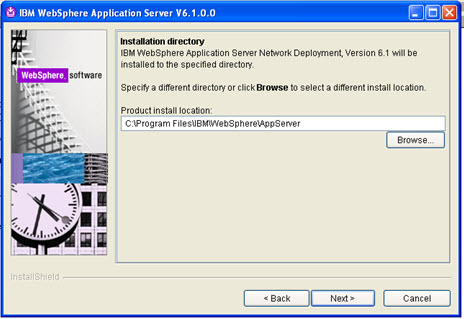
Let’s start network deployment install, Click on the launchpad.exe

Next

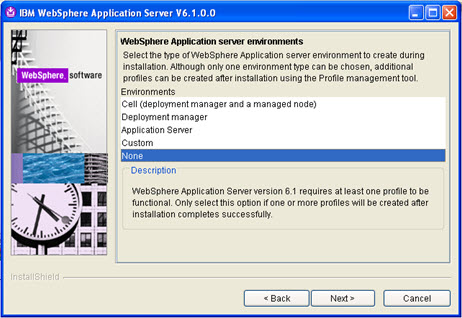
Select none. Installation carries on…..

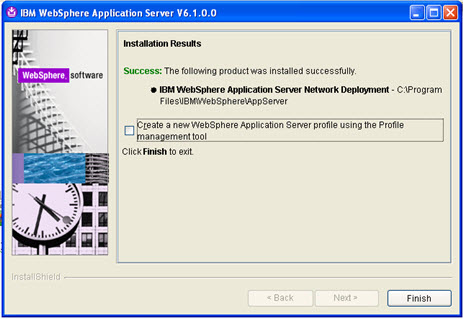
Uncheck the check box as shown in the following figure. And you will be able to create the deployment manager profile using Profile creation tool.

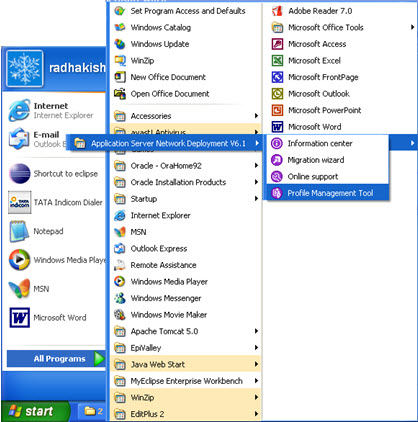
To open the profile creation tool from the command prompt

D:\Program Files\IBM\WebSphere\AppServer\bin\ProfileManagement/pmt


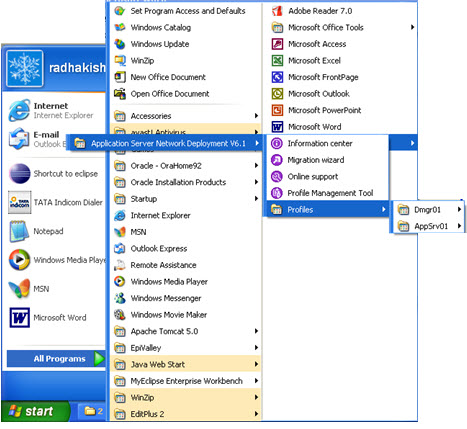
2. Go to program files and profile management tool as follows:

And create a deployment manager profile first.

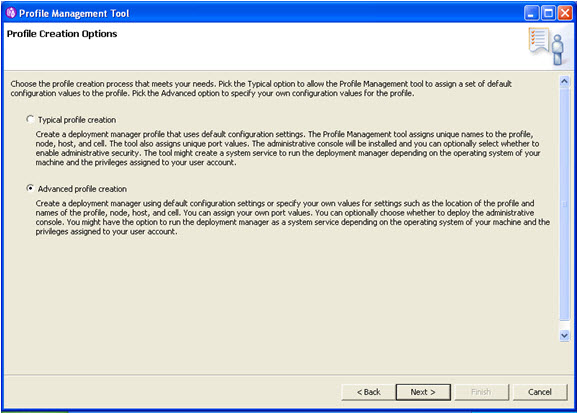
Select advanced profile creation.

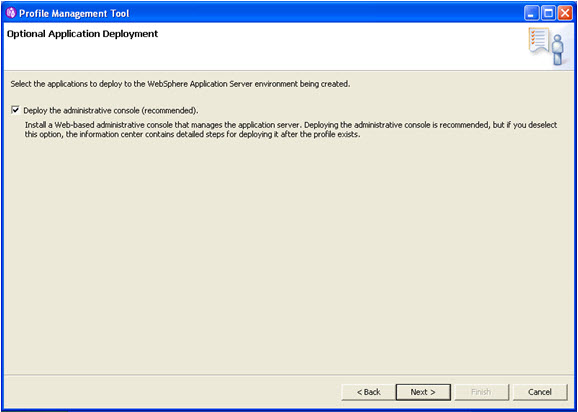
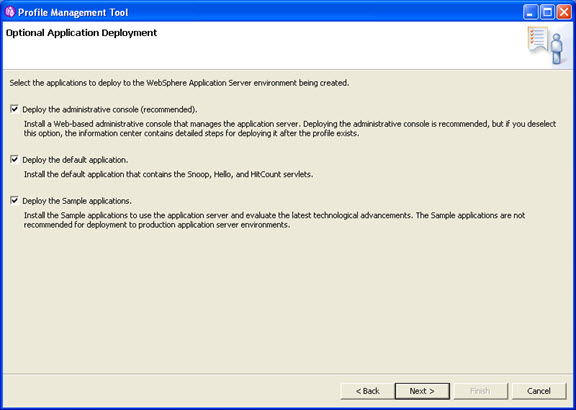
Select deploy administration console and click on next.

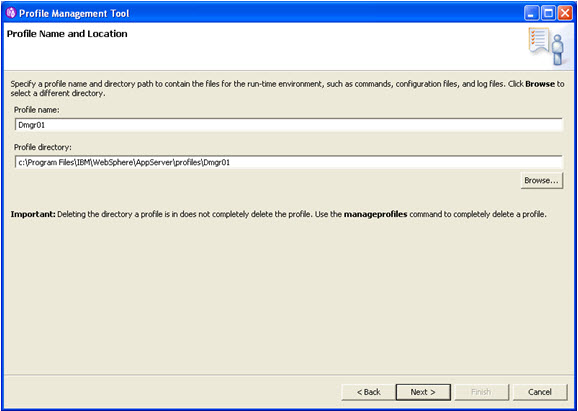
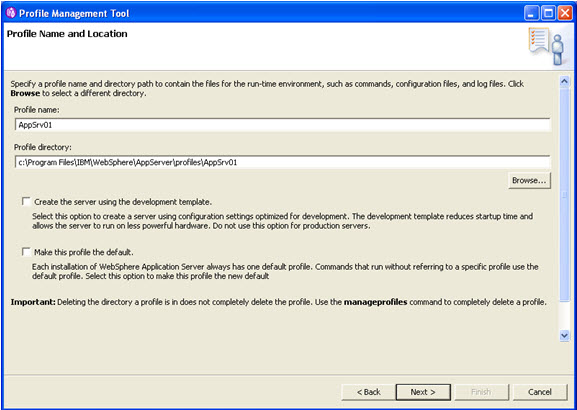
Specify profile name and directory and click on next.

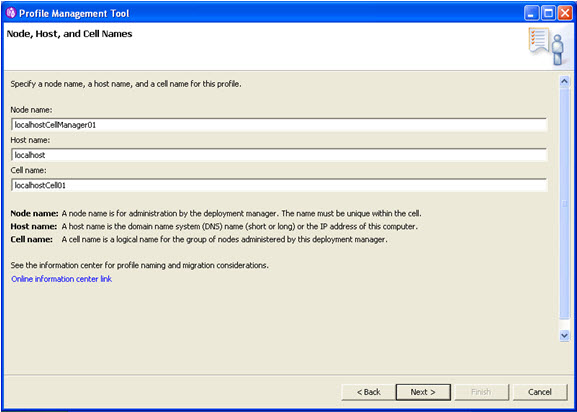
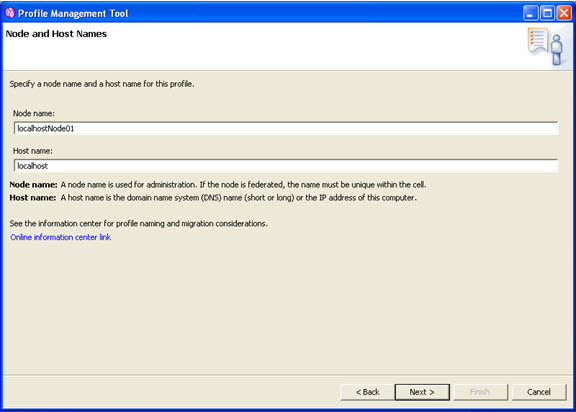
Specify the node name, host name and the cell name and click on next.

The above figure depicts the following:

  • Node name you can change if you want.
  • Host name is the local host as you are using only one machine
  • Cell name you can change if you want
    Node name and cell name can be changed, but host name is the name of the system.

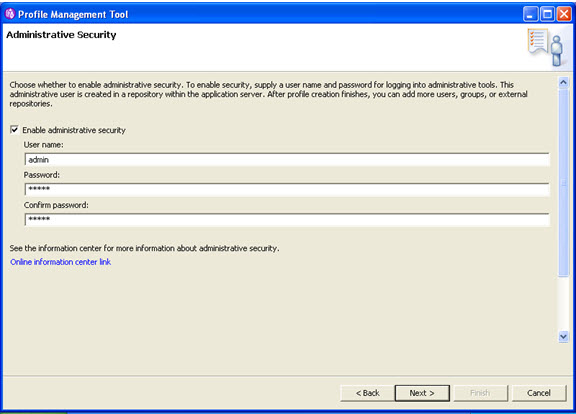
    Username: admin

    Password: admin

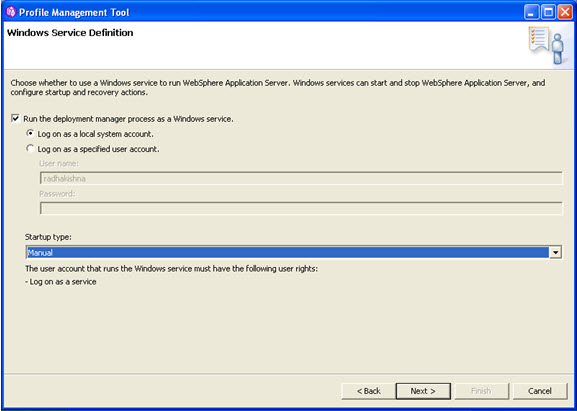
    Select start up type as manual.

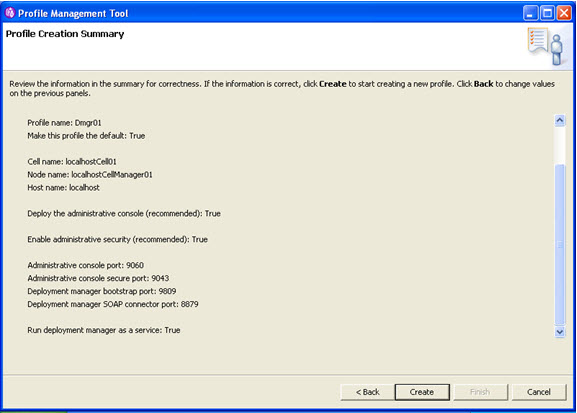
    Click on create, the profile Dmgr01 is being created.

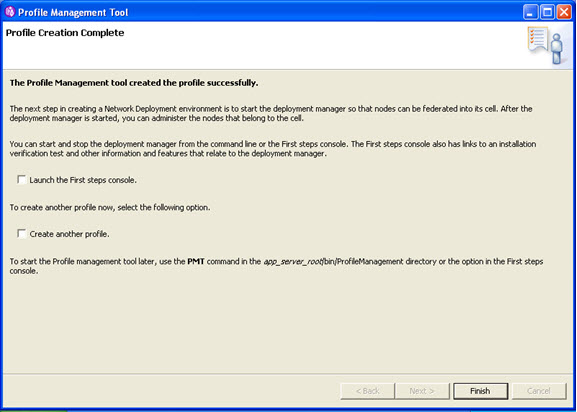
    Now only we are not launching the first step console.

    Click on finish.

    Now the deployment manager profile is created.

    To check the installation verification test manually.

    D:\Program Files\IBM\WebSphere\AppServer\profiles\Dmgr01\bin>ivt dmgr Dmgr01

    Now the profile Dmgr01 is created.

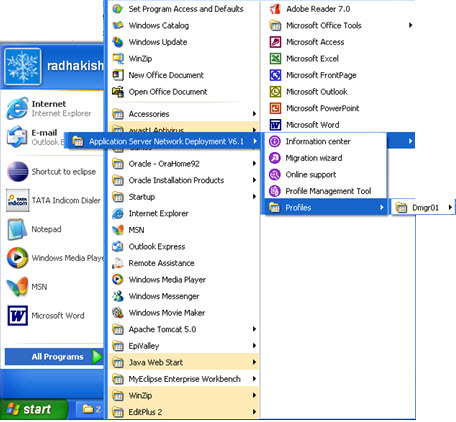
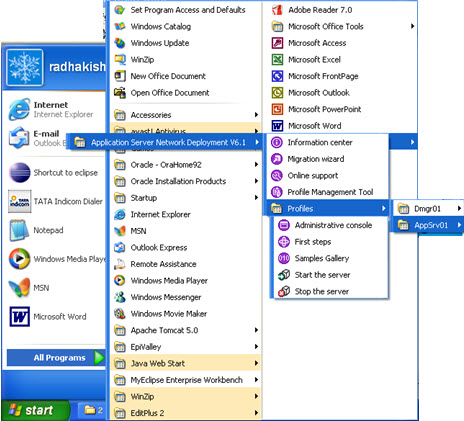
    See the options of the Dmgr01 profile.


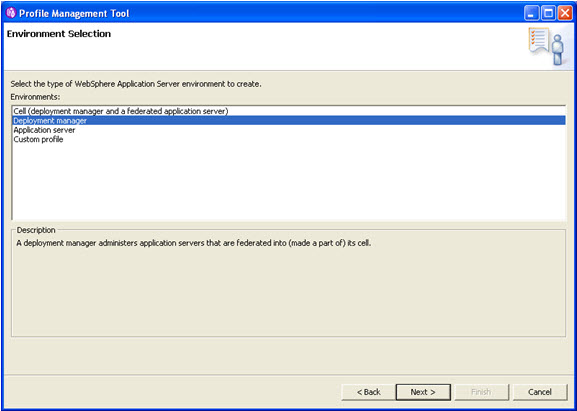
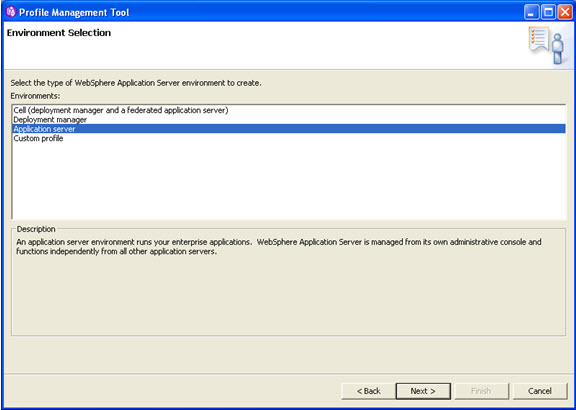
    3. Now we are going to create the Application Server Profile. Click on the profile Management tool.Select Application Server.

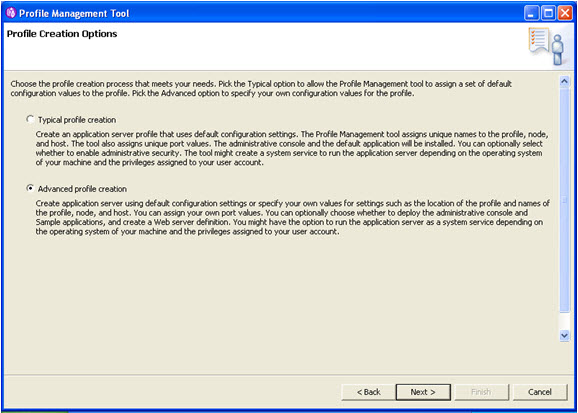
    Select advance profile creation and click on next.

    Select the three checkboxes and click on next.

    Specify the profile name and directory and click on next.

    Specify the node name and the host name and click on next.

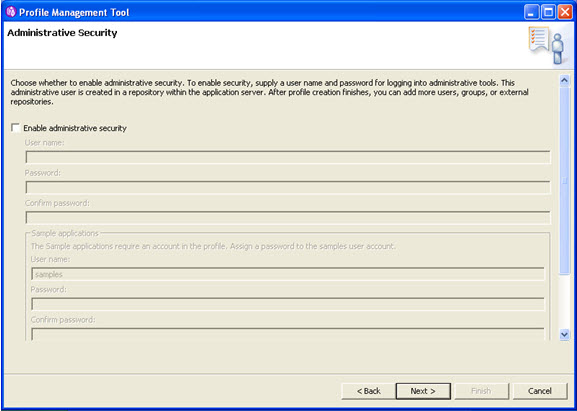
    We are not using security as of now.

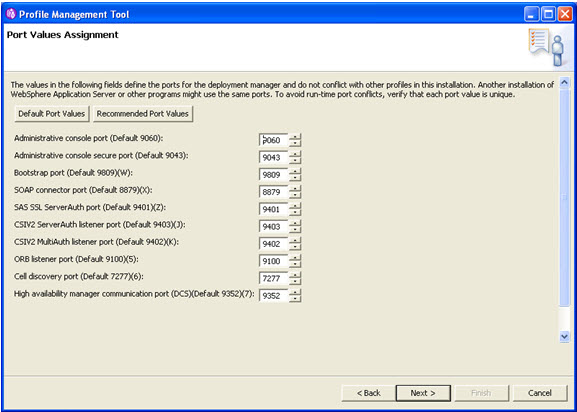
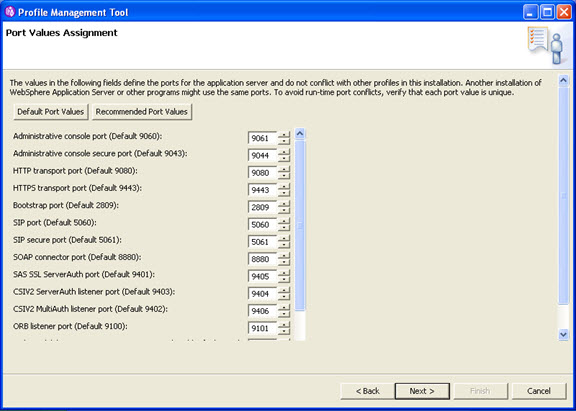
    Specify the ports and click on next.

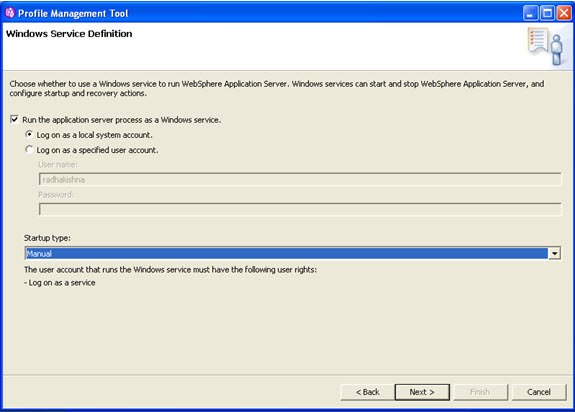
    Select “Run the application server process as a Windows service” and click on the next button.

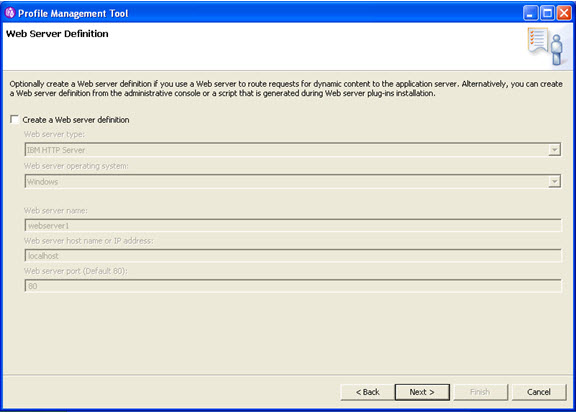
    Do not create a web definition. Click on next.

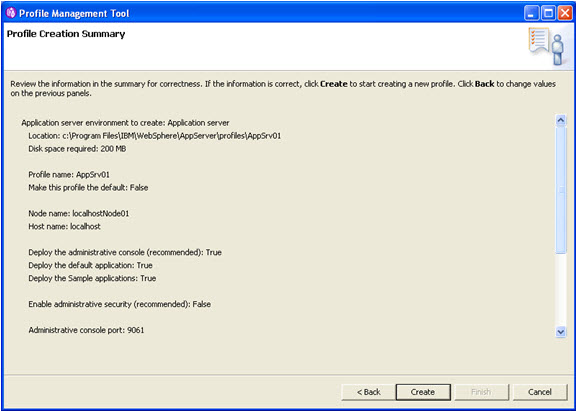
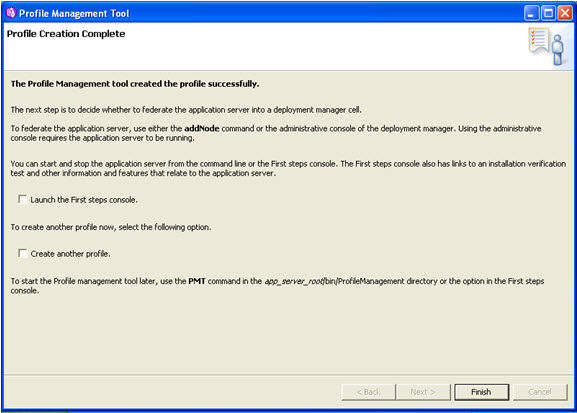
    Click on create.

    We are not launching the first step console now.

    Now in the profiles you can check application server profile is also created.

    For the installation verification test at the command prompt
    D:\Program Files\IBM\WebSphere\AppServer\profiles\AppSrv01\bin>ivt server1 AppSrv01

    ivt server1 AppSrv01 -> server1 is the name of the server , and AppSrv01 is the name of the profile.

    The name of the server is present in this location:
    D:\Program Files\IBM\WebSphere\AppServer\profiles\AppSrv01\config\cells\localhostNode01Cell\nodes\localhostNode01\servers


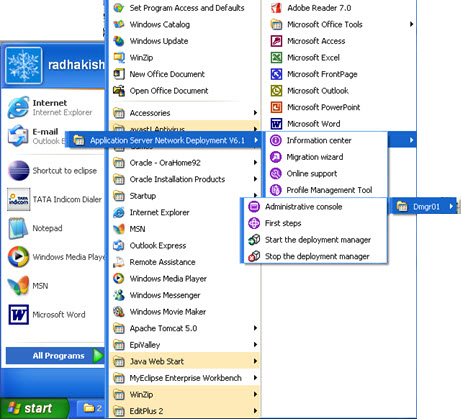
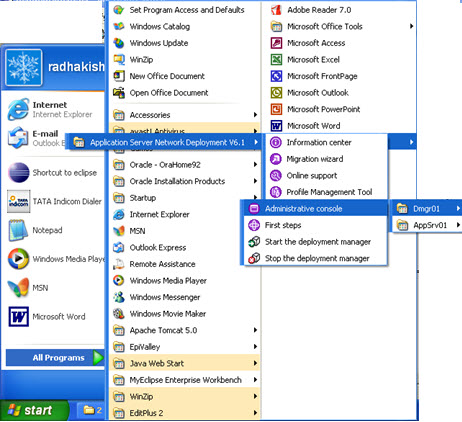
    NowFirst start the deployment manager and then the admin console of Deployment Manager Profile.

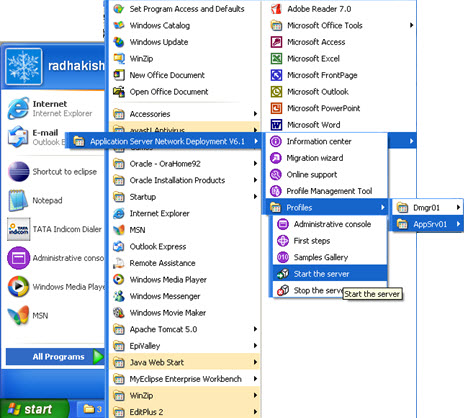
    Go to program files -> Ibm websphere

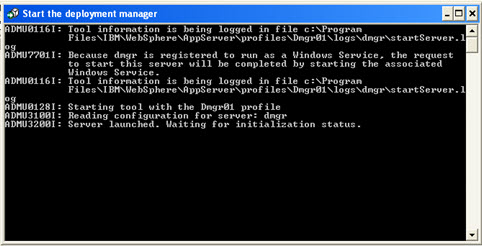
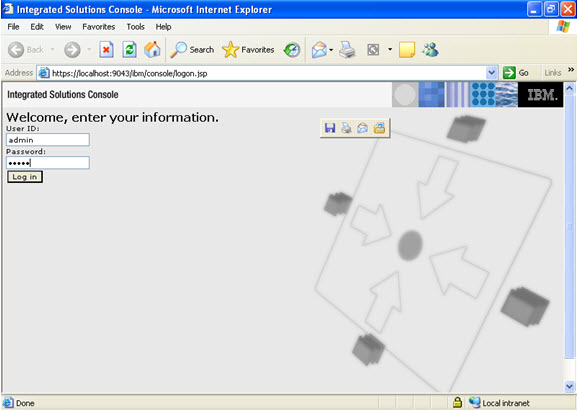
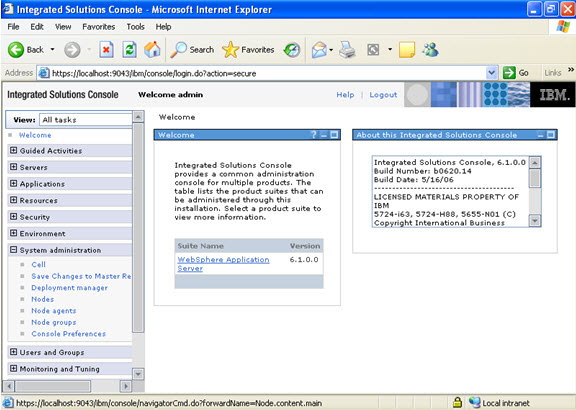
    Now first start the deployment manager, then start the Administrative console.

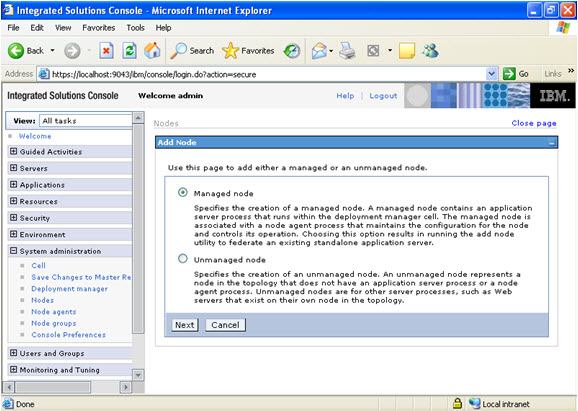
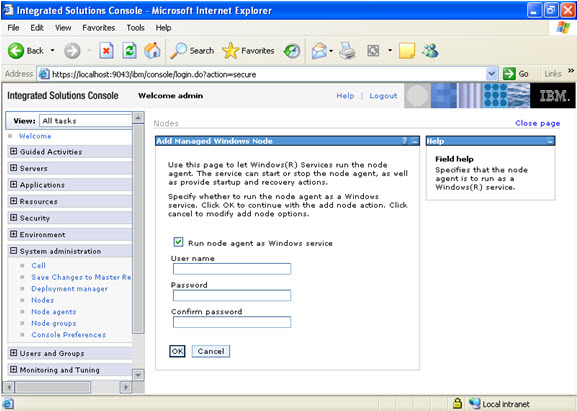
    Click on System administration, node, add node.

    Select managed node.

    Remember now you are in the Deployment manager profile Administrative console.

    Now to add the node, you go to the profiles.

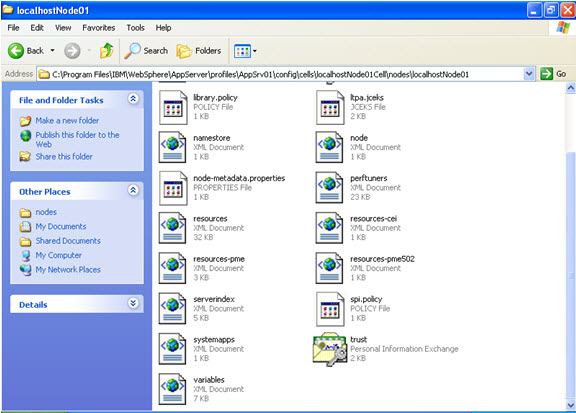
    Serverindex.xml file. Is present in the following location

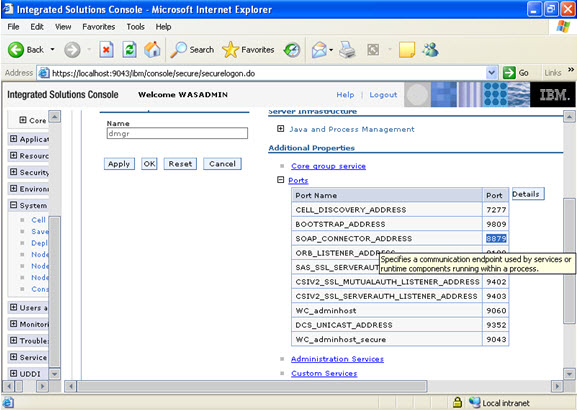
    In the serverindex.xml file check for the SOAP_CONNECTOR ADDRESS ,

    Note: The port no in this case is 8880 and the ORB_LISTENER_ADDRESS, in this case is 9101

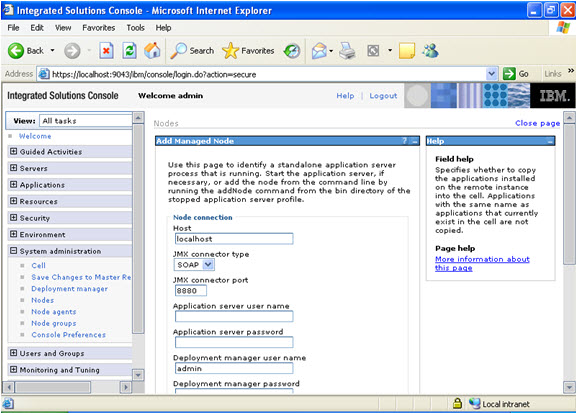
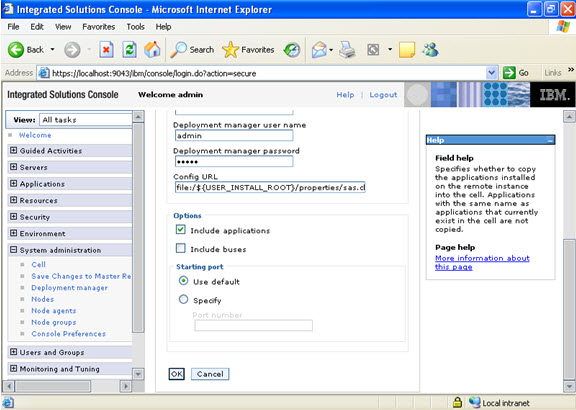
    Submit the following details as follows in the add node screen.

    Note: If the jmx connector type in the following figure is not SOAP AND you have selected RMI/IIOP then you have to use the ORB_LISTENER_ADDRESS port no.

    Note: now start the server and click on ok.

    After the server is started, then click on ok.

    Check on run node as windows service.

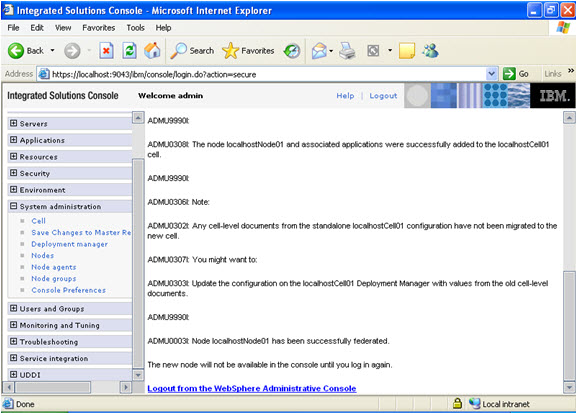
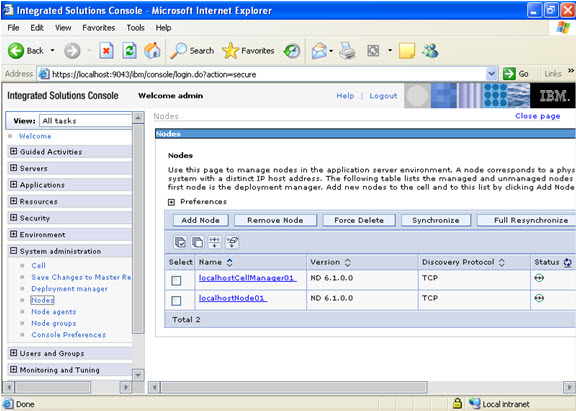
    Now the node is successfully added. You should log out and just login in again to see the new node

    The new node added is shown.


    To addNode from using the command prompt:Go to the command prompt,Application server/profiles/appsrv02/bin >addNode localhost 8879

    8879 is the SOAP PORT ADDRESS OF THE DEPLOYMENT MANAGER.

    To include applications use –includeapps

    Note: also note that in the bin directory of the Deployment Manager, there is no utility addNode.

Websphere ND Install: Install IBM HTTP Server

Posted by Sagar Patil

Go to application server profile and start the server. Start the deployment manager. Go to the administrative console and login.

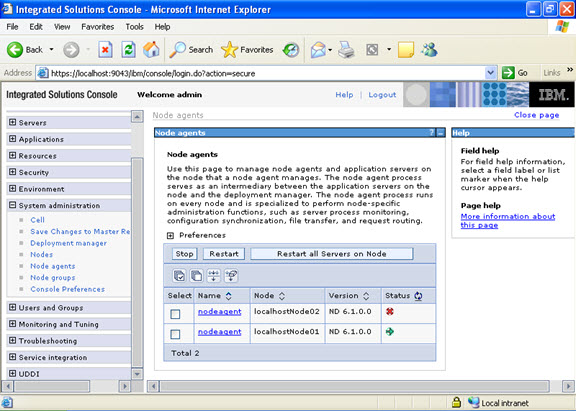
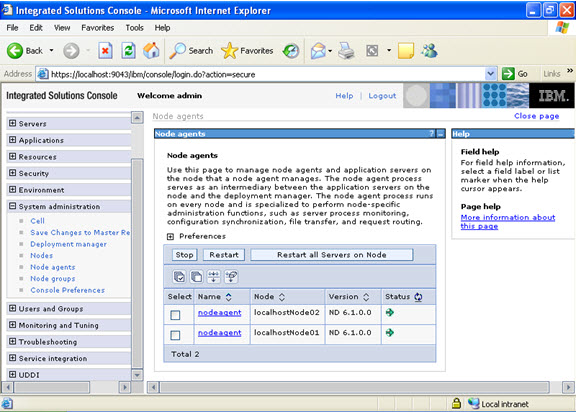
Now go to the node agents, if the node agents are not started up. It is necessary to start up the node agents.

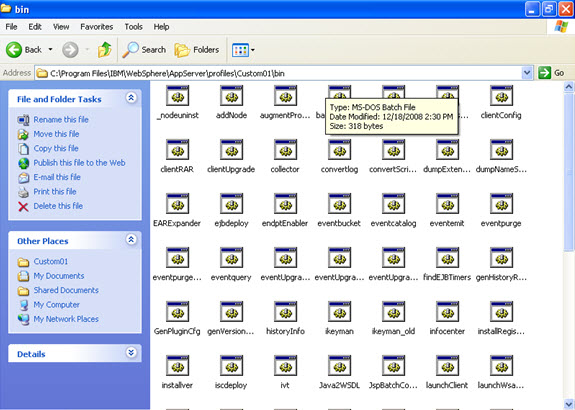
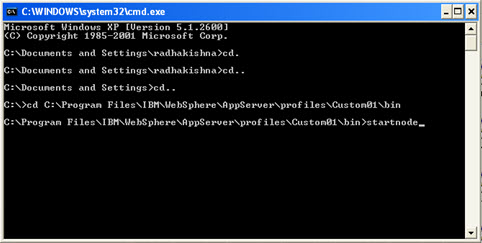
Manually go to the location of the node agents and use the startNode command.

This is the location:

Execute at the command prompt as follows:

The node agent has been started up.

The same procedure is also to be followed to start the node agent of the Appserver.

C:\Program Files\IBM\WebSphere\AppServer\profiles\AppSrv01\bin\startnode

Here AppSrv01 is the server that we are using.

Now verify that the two nodes are started.


To install the webserver

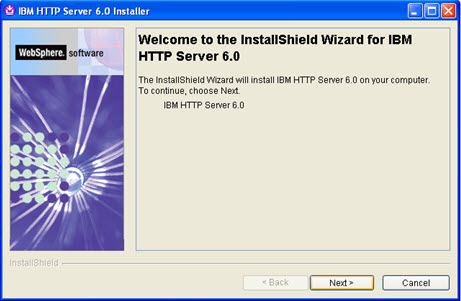
Go to 6.0 base/HIS/INSTALL.

Click on next.

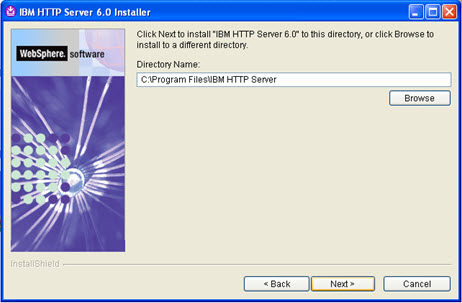
Select the directory where you want to install IBM HTTP Server 6.0 and click on the next button.

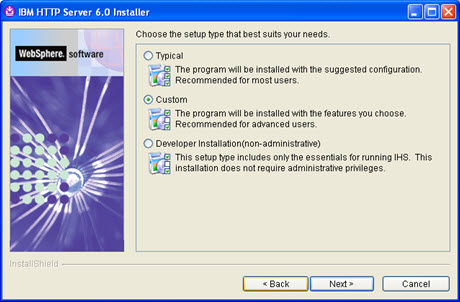
Select “Custom” and click on the next button.

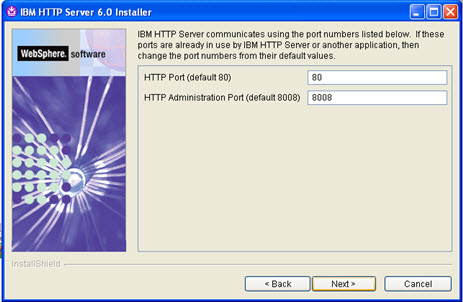
Specify the HTTP port and the HTTP Administration Port and click on next.

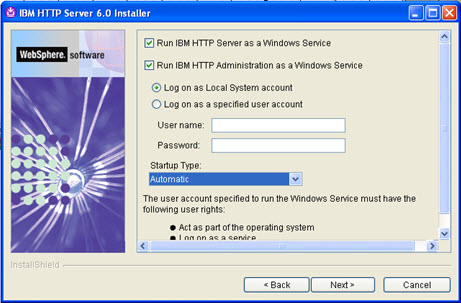
Select the two checkboxes and click on next.

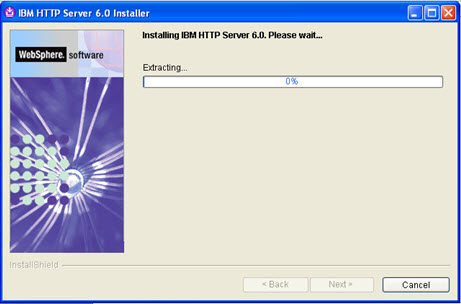
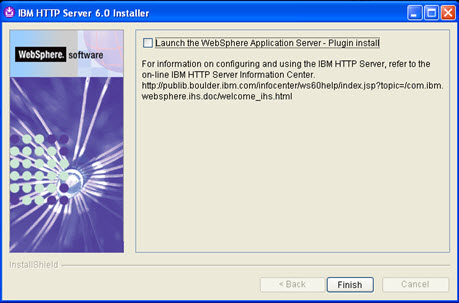
Uncheck the checkbox and click on finish.

Now the web server is installed.

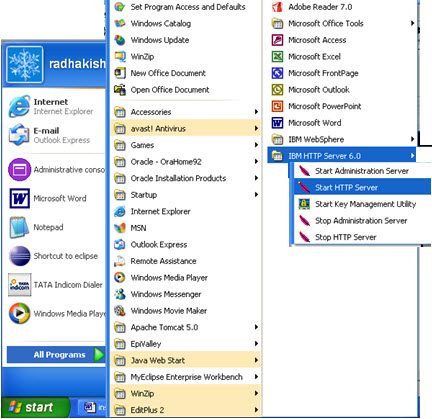
Check in the program files.

Start the web server.

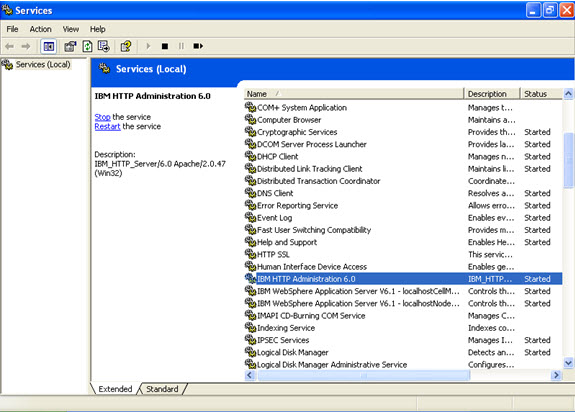
Go to services and start the IBM HTTP SERVICE.

Also in the browser check.

http://localhost

The web server console will open.


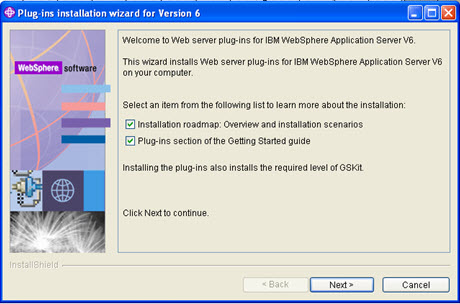
To install the plug-in software

Go to 6.0 base folder/ plugin/install

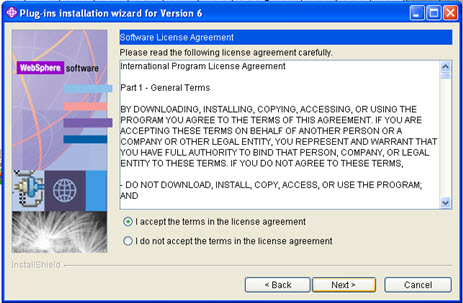
Accept the agreement and click on next.

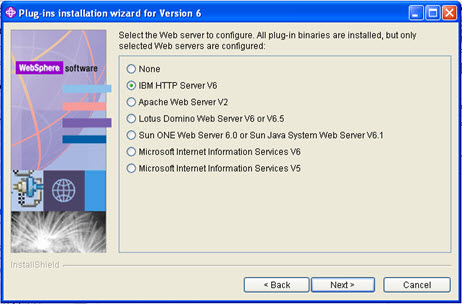
Select IBM HTTP Server V6 and click on next.

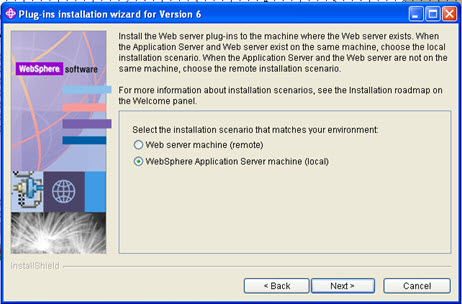
Select “Websphere Application Server machine (local)” and click on next.

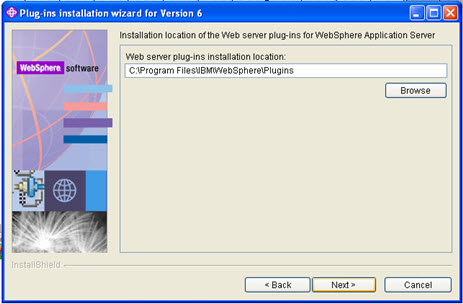
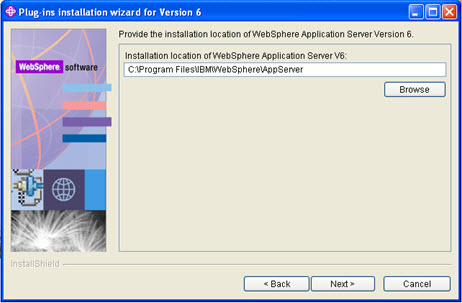
Specify the plug-ins installation directory and click next.

Select the location where you want the Websphere Application Server V6 to be installed and click on next after wards.

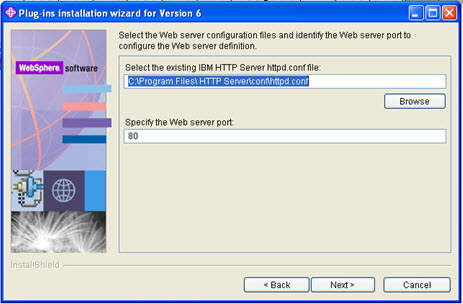
Select the httpconf file.


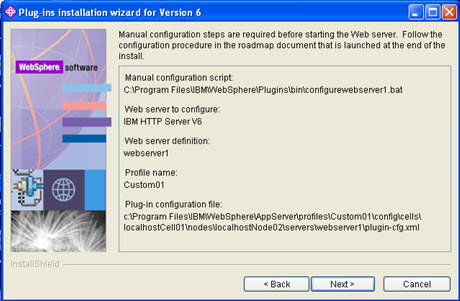
web-server plugin-cfg.xml file

C:\Program Files\IBM\WebSphere\AppServer\profiles\Custom01\config\cells\localhostCell01\nodes\localhostNode02\servers\webserver1\plugin-cfg.xml


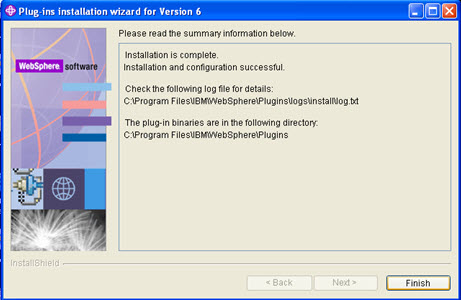
Click on Finish


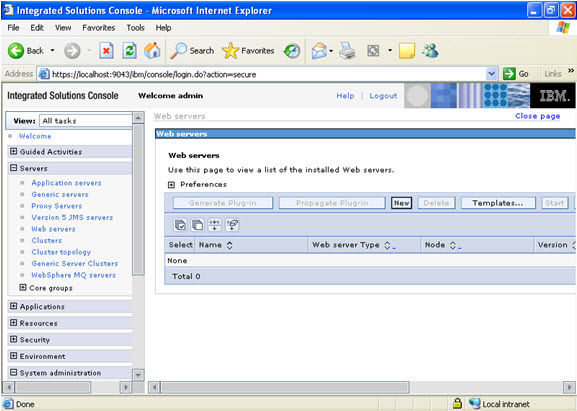
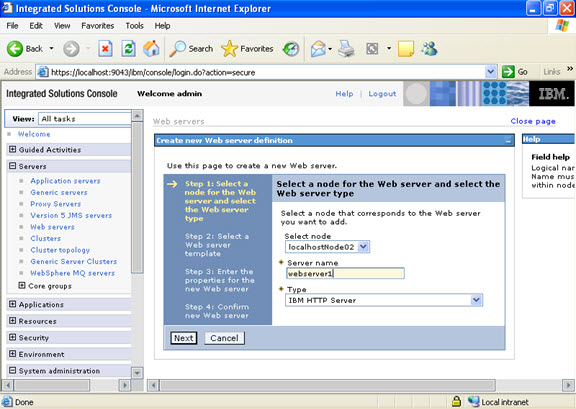
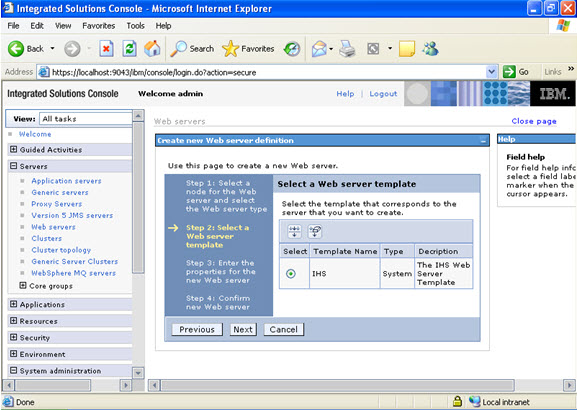
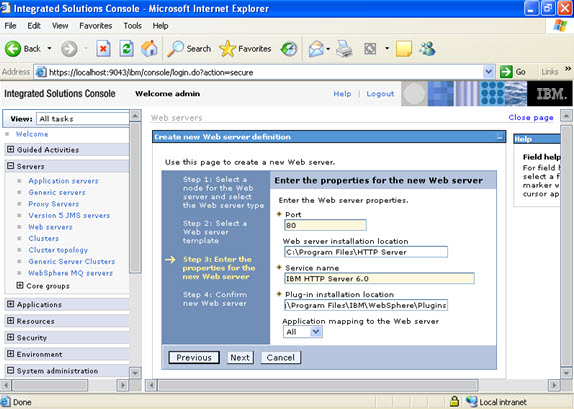
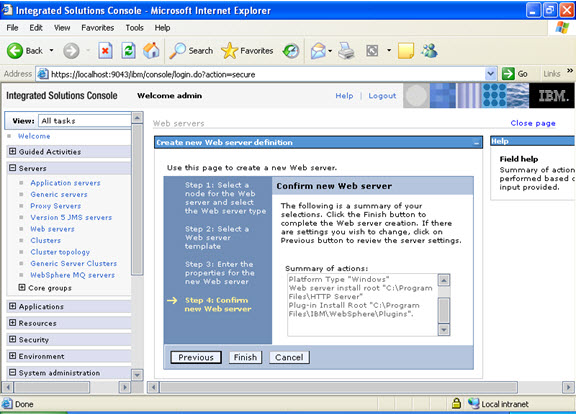
Now go to the web servers and create a new web server.

Fill the following details very carefully.

Check whether the application server and web server both are started.

After both web and application server are started, go to the enterprise applications and check the applications are started And then type

http://localhost/snoop in the browser and see the snoop servlet.

IBM Support Assistant: using Thread & Monitor dump analyzer

Posted by Sagar Patil

Click on file -> open & select local file

I can see JVM memory getting exhausted here

Scroll down to locate the memory distribution

Drill down to individual thread details is possible by  selecting “Analysis -> Thread Detail”

IBM Support Assistant: using Thread Analyzer

Posted by Sagar Patil

Start IBM Support Assistant &  choose ThreadAnalyzer

Here , we have number of of JavaCore and HeapDump files

Let’s pick up one of javacore file for further analysis

Once you hit Next it will invoke ThreadAnalyzer GUI


Select Analysis option menu to drill down relevant details

Websphere Diagnostics: Create & Analyze Trace Files

Posted by Sagar Patil

Read this as well

Navigate to DMGR -> Troubleshooting -> Logs and Trace ->

To enter a trace string to set the trace specification to the desired state:

  1. Click Troubleshooting > Logging and Tracing in the console navigation tree.
  2. Select a server name.
  3. Click Change Log Level Details.
  4. If All Components has been enabled, you might want to turn it off, and then enable specific components.
  5. Select Apply, then OK.

To know the exact location click on Runtime Tab and see the directory hosting trace.log file
I can see a trace.log at my directory now

Is my websphere configured in Development Mode?

Posted by Sagar Patil

WebSphere Portal has concept of Development mode for some time, basic idea is to improve the startup time of portal by delaying the startup of application. The application should be started when it is accessed for first time instead of starting it at the server startup time.
Following process will show you how to locate if websphere is configured to run under development mode

– Open a command prompt
– cd to the WAS_INSTALL_HOME\bin
– Start “wsadmin” using the following:

wsadmin -conntype none -lang jython
– Use the following wsadmin command to get the configuration ID for your server

server = AdminConfig.list( ‘Server’ ).splitlines()[ 0 ]
– Use the following command to display the server attributes:

print AdminConfig.show( server )
– Look for the following line:

[developmentMode false]
If your value is “true” then, this may be the reason WTE starts faster.

wsadmin>wsadmin>  server = AdminConfig.list( ‘Server’ ).splitlines()[ 0 ]
wsadmin>print AdminConfig.show( server );
[components “[(cells/server1_Cell/nodes/server1_Manager/servers/dmgr|server.xml#NameServer_1) “Deployment Manager(cells/server1_Cell/nodes/server1_Manager/servers/dmgr|server.xml#CellManager_1)” “WorkloadManagement Server(cells/server1_Cell/nodes/server1_Manager/servers/dmgr|server.xml#WorkloadManagementServer_1)” “Network Deployment Server(cells/server1_Cell/nodes/server1_Manager/servers/dmgr|server.xml#ApplicationServer_1)”]”]
[customServices []]
[developmentMode false]
[errorStreamRedirect (cells/server1_Cell/nodes/server1_Manager/servers/dmgr|server.xml#StreamRedirect_1)]
[name dmgr]
Trend Oracle log history : How much archives created per day/week or in an hour
Posted by Sagar Patil

Count of archive files and size of the redo generated by day

SELECT   A.*, ROUND (A.Count# * B.AVG# / 1024 / 1024) Daily_Avg_Mb
  FROM   (  SELECT   TO_CHAR (First_Time, 'YYYY-MM-DD') DAY,
                     COUNT (1) Count#,
                     MIN (RECID) Min#,
                     MAX (RECID) Max#
              FROM   v$log_history
          GROUP BY   TO_CHAR (First_Time, 'YYYY-MM-DD')
          ORDER BY   1 DESC) A, (SELECT   AVG (BYTES) AVG#,
                                          COUNT (1) Count#,
                                          MAX (BYTES) Max_Bytes,
                                          MIN (BYTES) Min_Bytes
                                   FROM   v$log) B;
DAY LOG COUNT DAILY_AVG_MB
02/07/2010 98 4480
01/07/2010 126 5760
30/06/2010 54 2469
29/06/2010 28 1280
28/06/2010 37 1691
27/06/2010 14 640
26/06/2010 14 640
25/06/2010 14 640
24/06/2010 19 869
23/06/2010 14 640

Copy this table into Excel & click on Chart Wizard. Select X,Y co-ordinates and you will get a nice picture like this

Count of archive files and size of the redo generated every hour

  SELECT   TO_CHAR (first_time, 'YYYY-MON-DD') day,
           TO_CHAR (SUM (DECODE (TO_CHAR (first_time, 'HH24'), '00', 1, 0)),
                    '99')
              "00",
           TO_CHAR (SUM (DECODE (TO_CHAR (first_time, 'HH24'), '01', 1, 0)),
                    '99')
              "01",
           TO_CHAR (SUM (DECODE (TO_CHAR (first_time, 'HH24'), '02', 1, 0)),
                    '99')
              "02",
           TO_CHAR (SUM (DECODE (TO_CHAR (first_time, 'HH24'), '03', 1, 0)),
                    '99')
              "03",
           TO_CHAR (SUM (DECODE (TO_CHAR (first_time, 'HH24'), '04', 1, 0)),
                    '99')
              "04",
           TO_CHAR (SUM (DECODE (TO_CHAR (first_time, 'HH24'), '05', 1, 0)),
                    '99')
              "05",
           TO_CHAR (SUM (DECODE (TO_CHAR (first_time, 'HH24'), '06', 1, 0)),
                    '99')
              "06",
           TO_CHAR (SUM (DECODE (TO_CHAR (first_time, 'HH24'), '07', 1, 0)),
                    '99')
              "07",
           TO_CHAR (SUM (DECODE (TO_CHAR (first_time, 'HH24'), '08', 1, 0)),
                    '99')
              "0",
           TO_CHAR (SUM (DECODE (TO_CHAR (first_time, 'HH24'), '09', 1, 0)),
                    '99')
              "09",
           TO_CHAR (SUM (DECODE (TO_CHAR (first_time, 'HH24'), '10', 1, 0)),
                    '99')
              "10",
           TO_CHAR (SUM (DECODE (TO_CHAR (first_time, 'HH24'), '11', 1, 0)),
                    '99')
              "11",
           TO_CHAR (SUM (DECODE (TO_CHAR (first_time, 'HH24'), '12', 1, 0)),
                    '99')
              "12",
           TO_CHAR (SUM (DECODE (TO_CHAR (first_time, 'HH24'), '13', 1, 0)),
                    '99')
              "13",
           TO_CHAR (SUM (DECODE (TO_CHAR (first_time, 'HH24'), '14', 1, 0)),
                    '99')
              "14",
           TO_CHAR (SUM (DECODE (TO_CHAR (first_time, 'HH24'), '15', 1, 0)),
                    '99')
              "15",
           TO_CHAR (SUM (DECODE (TO_CHAR (first_time, 'HH24'), '16', 1, 0)),
                    '99')
              "16",
           TO_CHAR (SUM (DECODE (TO_CHAR (first_time, 'HH24'), '17', 1, 0)),
                    '99')
              "17",
           TO_CHAR (SUM (DECODE (TO_CHAR (first_time, 'HH24'), '18', 1, 0)),
                    '99')
              "18",
           TO_CHAR (SUM (DECODE (TO_CHAR (first_time, 'HH24'), '19', 1, 0)),
                    '99')
              "19",
           TO_CHAR (SUM (DECODE (TO_CHAR (first_time, 'HH24'), '20', 1, 0)),
                    '99')
              "20",
           TO_CHAR (SUM (DECODE (TO_CHAR (first_time, 'HH24'), '21', 1, 0)),
                    '99')
              "21",
           TO_CHAR (SUM (DECODE (TO_CHAR (first_time, 'HH24'), '22', 1, 0)),
                    '99')
              "22",
           TO_CHAR (SUM (DECODE (TO_CHAR (first_time, 'HH24'), '23', 1, 0)),
                    '99')
              "23"
    FROM   v$log_history
GROUP BY   TO_CHAR (first_time, 'YYYY-MON-DD')
order by DAY desc;

Websphere: Using PerformanceMonitor Servlet to Monitor Performance Metric

Posted by Sagar Patil

The PerfServlet provides the performance data output as an XML document, The servlet provides a way to use an HTTP request to query the performance metrics for an entire WebSphere Application Server administrative domain.

First we need to deploy this servlet on (clustered) nodes  to be monitored before using it. The deployment is no way different than installing any EAR application file.

You can download and install PerfApp servlet from following links else visit IBM support portal
http://www.oracledbasupport.co.uk/wp-content/uploads/2010/09/perfServletApp.ear
http://www.oracledbasupport.co.uk/wp-content/uploads/2010/09/perfServletApp.war

http://%Server_name%:9080/wasPerfTool/servlet/perfservlet?module=beanModule+jvmRuntimeModule

Above URL will produce XML output file as  :http://www.oracledbasupport.co.uk/wp-content/uploads/2010/07/-1.xml

Locate perfServletApp.ear which is generally at installedApps directory under Profiles, goto deployment manager and install this ear file.

Access the performance matrix using URLs  below

Usage:

http://perfServlet_Host:port/wasPerfTool/servlet/perfservlet[?node=<node>&server=<server>&module=<module>]

The module name for which stats are displayed. Modules include the following:

  • alarmManagerModule
  • beanModule
  • cacheModule
  • connectionPoolModule
  • jvmRuntimeModule
  • j2cModule
  • objectPoolModule
  • orbPerfModule
  • schedulerModule
  • servletSessionsModule
  • systemModule
  • threadPoolModule
  • transactionModule
  • webAppModule
  • webServicesModule
  • wlmModule
  • wsgwModule

Node

The servlet can limit the information it provides to a specific host by using the node parameter.
http://Server1:9080/wasPerfTool/servlet/perfservlet?node=Server1_Node01

Server

The servlet can limit the information it provides to a specific server by using the server parameter.

For example, in order to limit the data collection to the server on all nodes, invoke the following URL:
http://Server1:9080/wasPerfTool/servlet/perfservlet?server=server_member1

To limit the data collection to the server invoke the following URL:
http://Server1:9080/wasPerfTool/servlet/perfservlet?node=Server1_Node01&server=server_member1

Module

The servlet can limit the information it provides to a specific PMI module by using the module parameter.
You can request multiple modules by using the following URL:
http://Server1:9080/wasPerfTool/servlet/perfservlet?module=beanModule+jvmRuntimeModule

For example, to limit the data collection to the beanModule on all servers and nodes, invoke the following URL:
http://Server1:9080/wasPerfTool/servlet/perfservlet?module=beanModule

To limit the data collection to the beanModule on the server ‘testserver’ on the node rjones, invoke the following URL:
http://Server1:9080/wasPerfTool/servlet/perfservlet?node=rjones&server=testserver&module=beanModule

To find the list of the modules, invoke the PerfServlet help with the following URL:
http://Server1:9080/wasPerfTool/servlet/perfservlet?action=help

http://Server1:9080/wasPerfTool/servlet/perfservlet?node=Server01_Node01&server=server_member1&module=jvmRuntimeModule


Top of Page

Top menu